

As a Steam Deck user, I understand all too well that nothing can be more frustrating than charging your console to 100%, launching your favorite game, playing it for a couple of minutes, and boom! Your Steam Deck shows the low battery pop-up 🙁
While possible, this is not always due to the Steam Deck battery error. More often, it is due to misconfigured settings that lead to the Steam Deck battery draining fast or, sometimes, the Steam Deck crashing issue.
If you’re experiencing this problem, too, then read this guide on how to fix the Steam Deck battery health issue. One of the methods listed below fixed the Steam Deck battery problems for me.
So, without further ado, let’s get started!
What Is Steam Deck Battery Capacity?
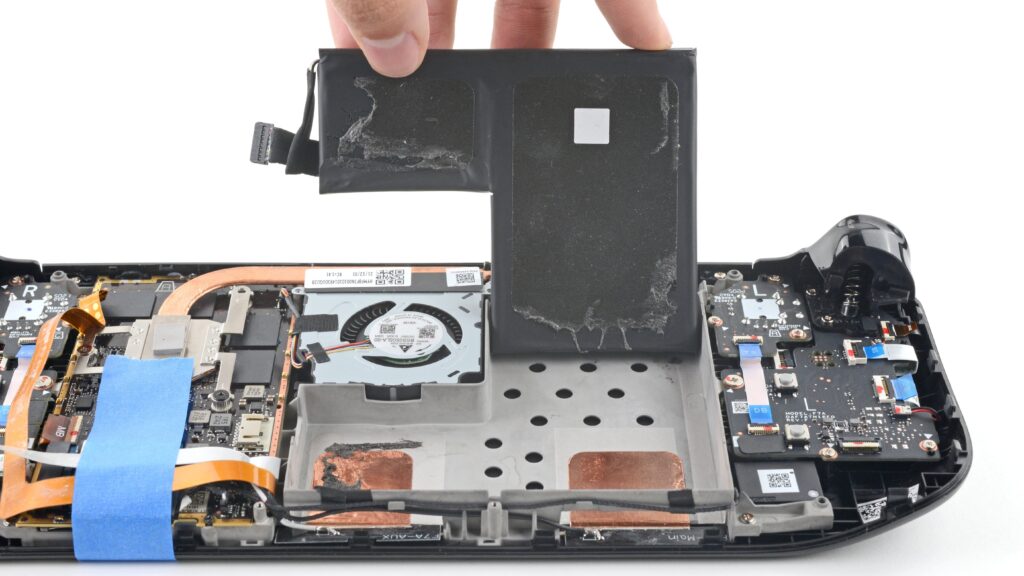
The Steam Deck comes with a 40Wh (5313 mAh) lithium-ion battery.
The Steam Deck battery life averages 2 to 8 hours, depending on the game, graphics settings, brightness, and other related settings. Typically, light indie games use less power, while heavy AAA titles drain the battery quickly.
This is why Steam Deck battery life by game feels very different, especially to first-time handheld console players.
Why Does Steam Deck Battery Drain When Off
A common reason for Steam Deck battery drains when off is Sleep or Standby mode. This is because even with the screen off, the system draws power for background processes, causing Steam Deck battery drain in sleep mode.
Another reason is docking. Some users face Steam Deck battery draining while docked due to unstable power input or poor-quality chargers.
Battery calibration errors can also cause wrong battery readings, making it seem like the Steam Deck battery drains quickly or appears stuck at 1 percent.
How To Fix Steam Deck Battery Health

If your Steam Deck battery draining fast or you’re seeing odd battery percentages, these methods can help fix battery issues on Steam Deck as well as overall battery life.
Some are quick tweaks, while others take a bit more effort. Regardless, many users report noticeable improvements when done right. So make sure to go through all of them, just to be on the safe side.
1. Update to The Latest OS Version
Outdated software can cause Steam Deck battery errors and fast-draining issues. Therefore, Valve often releases updates that include battery drain fixes and performance enhancements:
- Press the Steam button.
- Go to Settings → System → Software Updates.
- If an update is available, download and install it.
- Restart your Steam Deck after the update.
2. Reduce Brightness
As a matter of fact, the screen is one of the biggest power users on the Steam Deck. As such, it can be the reason why the Steam Deck battery drains quickly for you:
- Press the Steam button → Settings
- In the Display Tab, go to Brightness
- Drag the Brightness slider lower (40–60% is good)
Lower brightness means less energy spent lighting the display, thus increasing the battery lifespan.
3. Lower The FPS Settings
Running games at high FPS causes the Steam Deck battery drains too fast problem:
- Open Quick Access from the three dots button.
- Go to Performance.
- Select Advanced View.
- Enable and set Framerate Limit to 30 or 40 FPS.
Lower FPS directly reduces power used by the GPU and CPU, thus improving battery life.
4. Adjust Graphic Settings
Just like with higher FPS, High graphics settings drain power faster and reduce Steam Deck battery life by game:
- In your game’s settings menu, find Graphics/Video options.
- Lower Shadows,
- Lower Texture Quality,
- Disable Anti-Aliasing.
- Enable FSR if possible. It gives a good balance of visuals and performance.
5. Use Airplane Mode for Single Player Titles
Wi-Fi and Bluetooth can cause Steam Deck battery drain on standby or during gameplay. If you don’t need them, turning them off can help with the Steam Deck battery draining fast problem:
- Press the Steam button → Quick Settings → Airplane Mode.
- Turn it ON.
6. Use a Powerful, Reliable Charger or Power Bank
Using a weak charger can give rise to unstable charging. This is because cheap chargers are not able to supply enough power for both charging and gaming at the same time, thus causing the Steam Deck battery draining while docked problem over time.
Therefore, we recommend you use the official 45W Steam Deck charger that comes with it.
But if you mainly use the console while traveling, then carrying a high-wattage USB-C power bank (45 W or higher) is a must. Good power delivery reduces unexpected drain and charging issues.
7. Enable the Thermal Power Limit (TDP)
For those unaware, TDP controls how much power the CPU/GPU can use. Therefore, lowering this reduces battery life drain on the Steam Deck.
- Open Quick Access from the three dots button.
- Go to Performance.
- Enable TDP Limit.
- Set it between 8–12W.
8. Avoid 3rd Party Chargers
Using non-official chargers or cables can cause charging problems or miscalibration. In fact, many Steam Deck battery life not accurate reading issues arise due to using 3rd-party chargers.
Why this matters:
- Incorrect voltage damages battery health
- Leads to the Steam Deck battery stuck at 1% or 0%
So what’s the solution? It is to use original or certified USB-C PD chargers.
9. Reinstall SteamOS
In rare cases, corrupted files or hidden malware can cause serious Steam Deck battery draining fast problems.
- Download the SteamOS Recovery Image from Valve.
- Create a bootable USB drive.
- Boot the Steam Deck into recovery mode.
- Select Reinstall SteamOS.
This keeps your files but refreshes the system.
10. Boot into BIOS to Completely Reset Steam Deck Battery
If all of the above methods fail, then completely resetting your Steam Deck battery becomes the last resort. This is a bit more advanced, unofficial method, so proceed carefully.
If done right, it will once and for all fix all the Steam Deck battery errors on your handheld console:
- Drain the Steam Deck battery to 0% by playing a game, video, or other activity until it shuts off completely.
- If the Deck enters battery storage mode with the LED blinking three times, plug in the charger briefly to continue.
- Hold the Volume Up button while pressing the Power button to boot into the BIOS settings menu.
- Leave the Deck on the BIOS screen until the battery dies again.
- Repeat the BIOS drain 1–2 more times until the Deck cannot even reach BIOS before dying. You may have to briefly plug the charger in to get it to restart.
- Once the Deck is fully drained, plug in the charger and ensure the device stays off while charging.
- If it powers on automatically, unplug the charger, wait for it to die again, then reconnect so charging begins from a completely dead state.
- Leave the Deck charging overnight for at least 6–8 hours without touching it.
- In the morning, power on the Deck, enter Desktop Mode, and check battery health in the taskbar.
- The battery health should now read over 90%, indicating successful recalibration.
What Is Steam Deck?

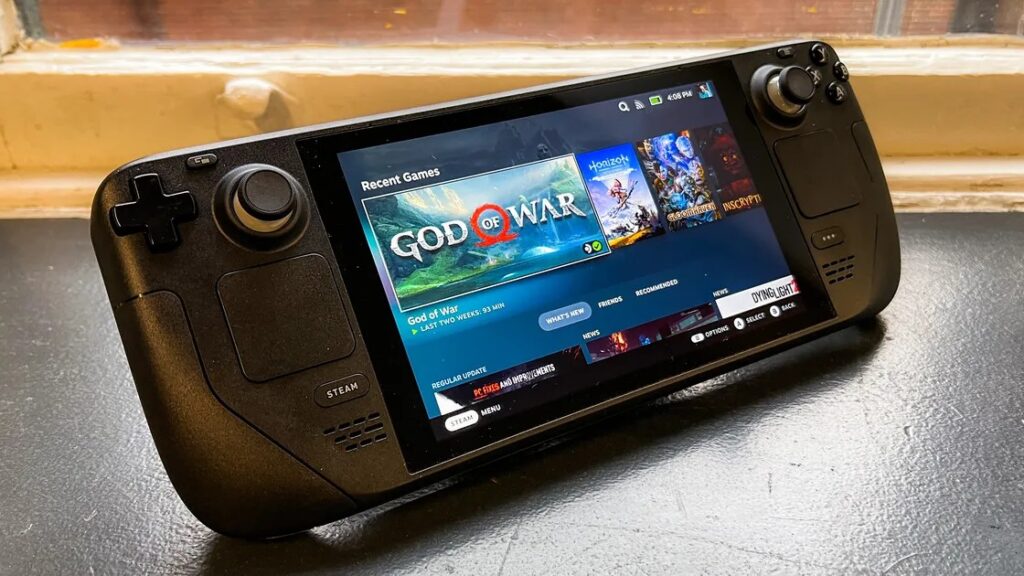
The Steam Deck is a handheld gaming PC made by Valve. It runs on SteamOS, which is based on Linux, and lets you play PC games from your Steam library anywhere. Think of it as a small computer built mainly for gaming, with a controller-style layout, touchpads, and a full display.
Can Steam Deck Overcharge?
No, the Steam Deck cannot overcharge. It has built-in protection that stops charging once the battery reaches 100%. Keeping it plugged in is safe and will not damage the battery.
Is the Steam Deck Battery Replaceable?
Yes, the battery is replaceable. To change the battery, you first need to open the device, which can void the warranty if done incorrectly.
It’s better to take it to your local authorized tech store, where the staff can help you with battery replacements.
What Is Steam Deck Battery Storage Mode?
Battery Storage Mode is a special setting used when storing the Steam Deck for a long time. It disables the battery to prevent battery life drain on Steam Deck and helps maintain battery health.
Steam Deck Technical Specifications (Specs)
- Battery: 40Wh lithium-ion
- Display: 7-inch LCD/OLED (800p)
- CPU/GPU: AMD APU (Zen 2 + RDNA 2)
- RAM: 16GB LPDDR5
- Storage: 256GB / 512GB / 1TB
- OS: SteamOS
- Charging: USB-C, 45W
FAQs About Steam Deck Battery Draining Fast Issue
Is Steam Deck Battery Life Bad?
No, but heavy games can make the Steam Deck battery drains quickly compared to lighter titles.
Is It Bad to Drain the Steam Deck Battery?
Yes, frequent full drains can reduce battery health over time.
How To Drain the Steam Deck Battery Quickly?
High brightness, high FPS, and max preset video settings in AAA games drain the battery fastest.
Does Steam Deck Battery Degrade?
Yes, like all lithium batteries, it degrades over time.
How To Make the Steam Deck Battery Last?
Lower brightness, limit FPS, adjust graphics, and use TDP limits.
What Battery Does Steam Deck Have/Use?
It uses a lithium-ion battery, which is very common in modern devices.
Why Does My Steam Deck Battery Drain So Fast?
Factors like high gameplay settings, background apps, sleep mode, or battery calibration issues can cause battery life drain on the Steam Deck.
Will the Steam Deck Become Outdated?
Not soon, but eventually. Valve supports it well, and performance is still strong. It runs modern games with smart optimized settings.
To Wrap It Up
Dealing with the Steam Deck battery draining fast problems can be frustrating, but most issues are easy to fix, as seen above. From adjusting settings to updating SteamOS and using proper chargers, small changes can make a big difference.
By following the tips in this guide, you can improve Steam Deck battery life average, reduce battery problems, and enjoy longer gaming sessions without worry.
Did any of the above-mentioned solutions work for you? If so, then share your experience with us in the comments down below!