
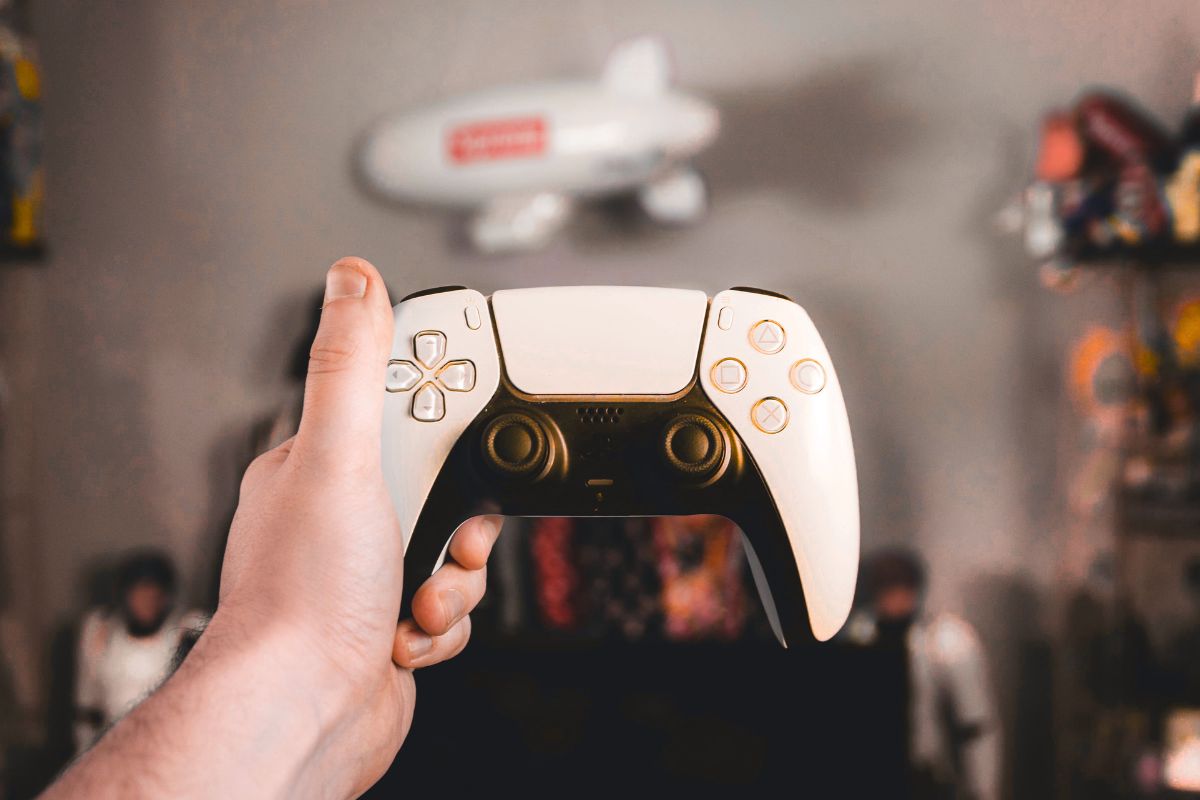
Fix PS5 Controller Not Working may not work correctly on PC, whether using Steam or non-Steam platforms. The controller may fail to connect, show input lag, or not be recognized at all. This issue is often caused by outdated drivers, improper connection methods, system configuration conflicts, or missing controller support in specific games. Most cases can be resolved using step-by-step software and hardware adjustments.
Common Reasons Fix PS5 Controller Not Working on PC
Fix PS5 Controller Not Working relies on Bluetooth, USB drivers, and platform-specific input support. Problems occur when drivers are outdated, USB ports are faulty, or Bluetooth interference exists. Steam settings may prevent controller detection, and non-Steam games may lack native DualSense support. Faulty cables or firmware mismatches can also cause connection issues.
Fix 1 – Check Connection Type and Cable Quality
A stable connection is essential for proper controller functionality.
For wired connections, use a USB-C to USB-A or USB-C cable rated for data transfer. Avoid cables that only support charging. Connect directly to the PC USB port, not a hub. For wireless connections, ensure Bluetooth 5.0 or higher is available on the PC. Enable pairing mode by holding the PS button and Create button until the light flashes. Pair the device through Windows Bluetooth settings.
Stable cables and proper pairing prevent intermittent recognition failures.
Fix 2 – Update Windows and Drivers
Outdated system files or USB drivers can prevent controller detection.
Press Windows + I and open Update & Security. Install all pending Windows updates. Open Device Manager and expand Universal Serial Bus controllers. Right-click each USB device and select Update driver. Restart the PC after updates.
This ensures full compatibility with the PS5 controller.
Fix 3 – Configure Steam Controller Settings
Steam provides native DualSense support, which may need enabling.
Open Steam and go to Settings. Navigate to Controller, then General Controller Settings. Enable PlayStation Configuration Support. Connect the controller and verify detection under Detected Controllers. Launch the game through Steam to confirm functionality.
Enabling configuration support allows full input mapping and haptic functionality.
Fix 4 – Use DS4Windows for Non-Steam Games
Non-Steam games may not recognize the DualSense controller without emulation.
Download and install DS4Windows. Open the application and connect the controller via USB or Bluetooth. Ensure the controller is mapped as an Xbox controller for maximum compatibility. Launch the non-Steam game and confirm input recognition.
DS4Windows provides necessary drivers and mapping for Windows-based games.
Fix 5 – Reset the Controller
Controller firmware issues may cause connectivity problems.
Locate the reset button on the back of the PS5 controller. Use a small pin to press and hold the button for 10 seconds. Reconnect the controller via USB or Bluetooth. Confirm Windows detects the device and Steam or DS4Windows recognizes input.
Resetting clears temporary firmware glitches affecting PC connectivity.
Fix 6 – Disable Conflicting Software
Other input devices or background software may interfere with the controller.
Close software that interacts with controllers, such as input remappers, emulators, or peripheral management tools. Ensure no other DualSense or DualShock drivers are active. Restart the PC and reconnect the controller.
Reducing conflicts ensures consistent input recognition.
FAQs
Why does the PS5 controller work in Steam but not in other games?
Non-Steam games often lack native DualSense support. Using DS4Windows emulates an Xbox controller for compatibility.
Will wired and wireless connections behave differently?
Wired connections provide lower latency and more stable recognition. Wireless connections may experience interference or require Bluetooth 5.0 for reliable pairing.
Can USB hubs prevent the PS5 controller from working?
Yes. Some hubs only support charging, not data transfer. Direct USB ports ensure full functionality.
Conclusion
Fix PS5 Controller Not Working on PC are usually caused by driver issues, improper connections, or platform-specific input limitations. Using proper cables, updating drivers, configuring Steam settings, or employing DS4Windows for non-Steam games resolves most problems. Resetting the controller and minimizing software conflicts ensures stable recognition and full functionality. Following these steps restores reliable PS5 DualSense performance on both Steam and non-Steam platforms.