

The Steam Deck relies on a stable Wi-Fi connection for updates, game downloads, cloud saves, and online features. Some users experience Fix Steam Deck Wi-Fi Not Connecting, frequent disconnections, or very slow speeds. These problems are usually related to network configuration, power management, or SteamOS software behavior rather than hardware failure.
Common Reasons Fix Steam Deck Wi-Fi Not Connecting
Wi-Fi issues often occur after a SteamOS update or when switching between networks. Power-saving features can disable the wireless adapter. Router settings may block the device or force incompatible frequency bands. Signal interference and outdated system files can also cause unstable connections.
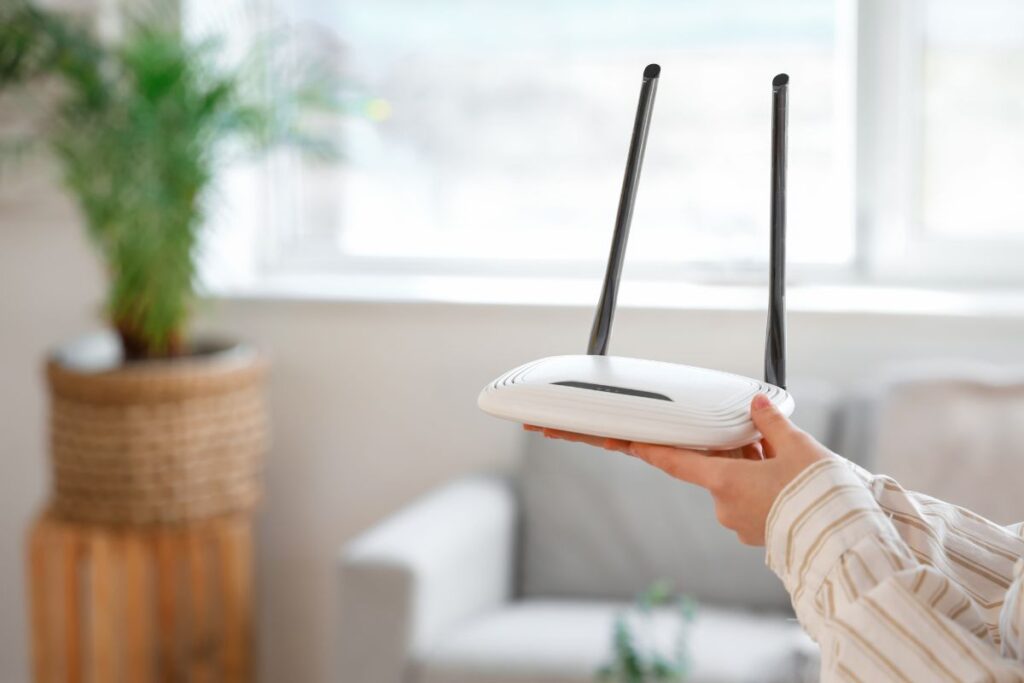
Fix 1 – Restart Network Services and Reconnect Wi-Fi
Restarting network services clears temporary connection errors and refreshes the wireless adapter.
Turn off the Steam Deck completely. Wait at least 30 seconds. Turn the device back on. Open Settings and go to Network. Disable Wi-Fi and wait 10 seconds. Enable Wi-Fi again. Select your network and enter the password carefully. Confirm the connection status.
If the connection remains stable for several minutes, the issue was caused by a temporary network fault.
Fix 2 – Disable Wi-Fi Power Management
SteamOS uses power management features to extend battery life. These settings may reduce Wi-Fi stability.
Open Settings and navigate to System. Enable Developer Mode. Go back to Settings and open Developer Options. Locate the Wi-Fi Power Management setting. Disable this option. Restart the Steam Deck.
This change prevents the system from lowering Wi-Fi performance during idle or low-power states.
Fix 3 – Switch Wi-Fi Band to 5 GHz or 2.4 GHz
Some routers automatically switch bands. This can interrupt the connection.
Open your router settings using a web browser on another device. Separate the 2.4 GHz and 5 GHz networks if they share the same name. Connect the Steam Deck to one band only. The 5 GHz band offers faster speeds within short range. The 2.4 GHz band provides better stability over longer distances.
Test the connection for at least 10 minutes to confirm stability.
Fix 4 – Forget and Re-Add the Wi-Fi Network
Saved network data can become corrupted.
Go to Settings and open Network. Select the connected Wi-Fi network. Choose Forget Network. Restart the Steam Deck. Return to Network settings and reconnect using the correct password.
This step rebuilds the connection profile and resolves authentication errors.
Fix 5 – Update SteamOS to the Latest Stable Version
Outdated system files can affect network performance.
Open Settings and go to System. Check for updates. Install any available SteamOS updates. Keep the device connected to power during the update process. Restart the system after installation.
Valve regularly releases network stability fixes through system updates.
Fix 6 – Reset Network Configuration Using Desktop Mode
If the issue continues, resetting network settings at the system level can help.
Switch to Desktop Mode. Open Network Manager from the taskbar. Remove all saved wireless networks. Restart the Steam Deck. Return to Gaming Mode and reconnect to Wi-Fi.
This clears deeper configuration errors that may not reset in Gaming Mode.
Extra Tips to Maintain Stable For Fix Steam Deck Wi-Fi Not Connecting
Keep the device within 5 to 7 meters of the router for optimal signal strength. Avoid crowded wireless channels in apartment or office environments. Use WPA2 or WPA3 security modes on the router. Avoid VPN connections unless necessary. Keep battery level above 20 percent during downloads.
FAQs
Why does Steam Deck connect to Wi-Fi but lose connection frequently?
This usually happens due to power management settings, router band switching, or signal interference. Disabling Wi-Fi power saving and locking the device to one frequency band often resolves the issue.
Will these fixes work on Steam Deck LCD and Steam Deck OLED?
Yes. Both models use the same SteamOS network stack. The steps apply to all Steam Deck versions.
Does this also work when using Steam Deck in docked mode?
Yes. These fixes apply in handheld and docked mode. External docks do not affect internal Wi-Fi hardware behavior.
Conclusion
Steam Deck Wi-Fi Not Connecting problems are typically caused by software settings, power management features, or router configuration conflicts. Restarting network services, disabling Wi-Fi power management, selecting a stable frequency band, and keeping SteamOS updated resolve most cases. Hardware failure is rare. Proper network configuration ensures reliable downloads, updates, and online gameplay.