
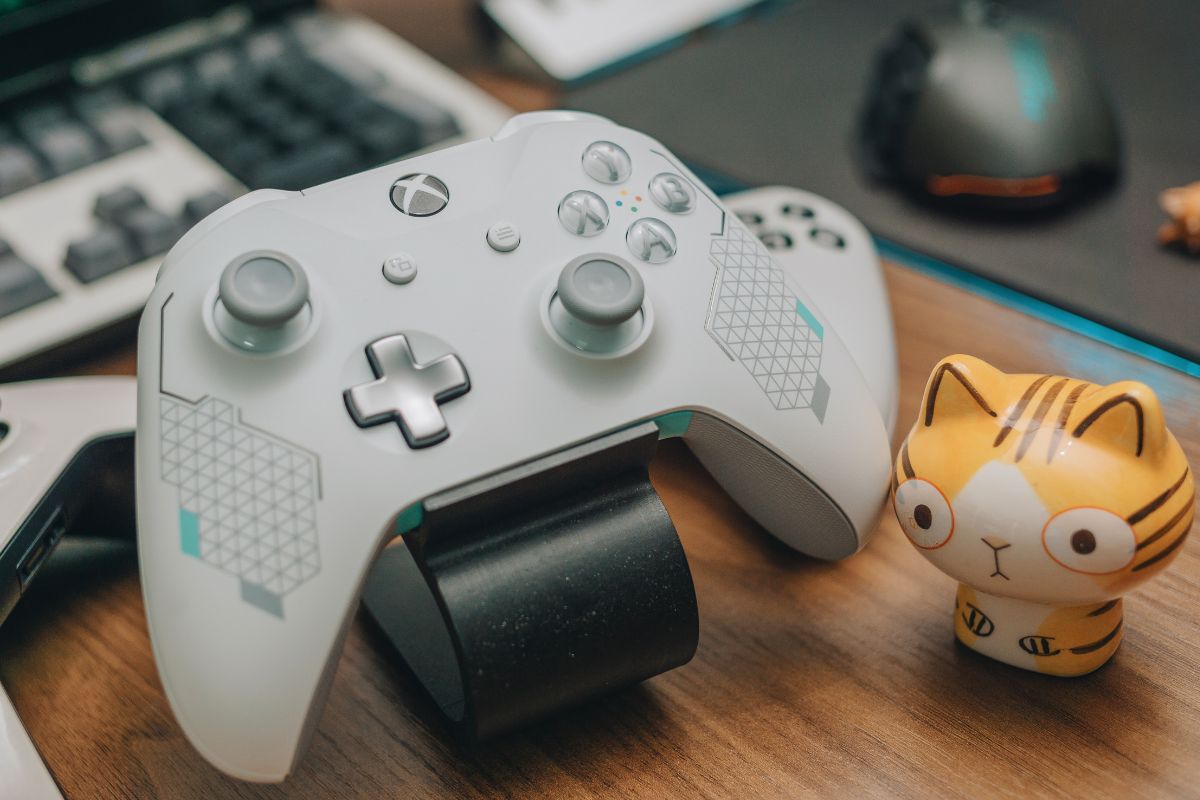
Fix Xbox Controller Not Detected on Windows 10 or Windows 11, preventing gameplay or system recognition. The controller may not respond when connected via USB or Bluetooth. Common causes include outdated drivers, system conflicts, faulty cables, or improper USB and Bluetooth settings. Most issues can be resolved with structured software and hardware troubleshooting steps.
Common Reasons Fix Xbox Controller Not Detected
Fix Xbox Controller Not Detected relies on USB ports, Bluetooth, Xbox Accessories drivers, and Windows system updates. Detection failures often occur due to outdated drivers, faulty cables, or insufficient power delivery. Conflicting software, including third-party controller utilities, may block recognition. Bluetooth interference or missing system updates can also prevent successful connection.

Fix 1 – Check Connection Type and Hardware
Ensuring a proper connection is essential for recognition.
For wired connections, use a USB-A to USB-C cable rated for data transfer. Connect directly to the PC USB port, not a hub. For wireless connections, verify that the PC supports Bluetooth 4.0 or higher. Activate pairing mode by pressing the Xbox button and the sync button simultaneously until the LED flashes. Confirm detection in Windows Bluetooth settings.
Proper cables and stable pairing prevent intermittent failures.
Fix 2 – Update Windows and Device Drivers
Outdated system files or drivers can prevent detection.
Press Windows + I and open Update & Security. Install all pending updates. Open Device Manager and expand Universal Serial Bus controllers. Right-click each USB device and select Update driver. Expand Human Interface Devices and update Xbox-related drivers. Restart the PC after installation.
This ensures full compatibility with Xbox controller hardware.
Fix 3 – Reinstall Xbox Accessories and Controller Drivers
Missing or corrupted drivers can block recognition.
Open Microsoft Store and install or update the Xbox Accessories app. Open Device Manager. Locate the Xbox controller under Human Interface Devices or Universal Serial Bus controllers. Right-click and select Uninstall device. Disconnect the controller and reconnect it. Windows will reinstall the necessary drivers automatically.
Reinstallation restores correct driver configuration.
Fix 4 – Disable Conflicting Software
Third-party input applications may interfere with controller detection.
Close software such as DS4Windows, input remappers, or emulator utilities. Disable other active controller drivers. Restart the PC and reconnect the Xbox controller.
This reduces software conflicts and ensures proper detection.
Fix 5 – Use Different USB Ports or Reset Bluetooth Adapter
USB ports may provide insufficient power or bandwidth. Bluetooth adapters may require a reset.
Try connecting the controller to a USB 2.0 or 3.0 port directly on the motherboard. Disable and re-enable the PC Bluetooth adapter via Device Manager. Re-pair the controller after resetting the adapter.
This resolves connectivity issues caused by hardware or bandwidth limitations.
Fix 6 – Check Power and Battery Levels
Wireless Xbox controllers require sufficient battery for detection.
Replace or recharge AA batteries or the internal battery pack. Ensure the controller has at least 20 percent charge before attempting connection. Press the Xbox button to confirm the controller powers on before pairing.
Adequate power prevents intermittent connection failures.
FAQs
Why does Windows 10/11 not detect my Xbox controller?
This usually occurs due to outdated drivers, faulty cables, or conflicts with other input software. Updating drivers and reconnecting the controller resolves most cases.
Will this fix work for both wired and wireless controllers?
Yes. The steps cover USB connections and Bluetooth wireless connections for Xbox One and Xbox Series X/S controllers.
Can USB hubs cause the controller to be undetected?
Yes. Some hubs provide limited power or data bandwidth. Direct motherboard ports ensure full functionality.
Conclusion
Fix Xbox Controller Not Detected on Windows 10 or 11 are typically caused by driver issues, connection problems, or software conflicts. Using proper cables, updating Windows and drivers, reinstalling Xbox Accessories, and minimizing software conflicts resolve most cases. Ensuring stable power and using direct USB ports or resetting Bluetooth adapters restores reliable controller recognition and consistent performance.