
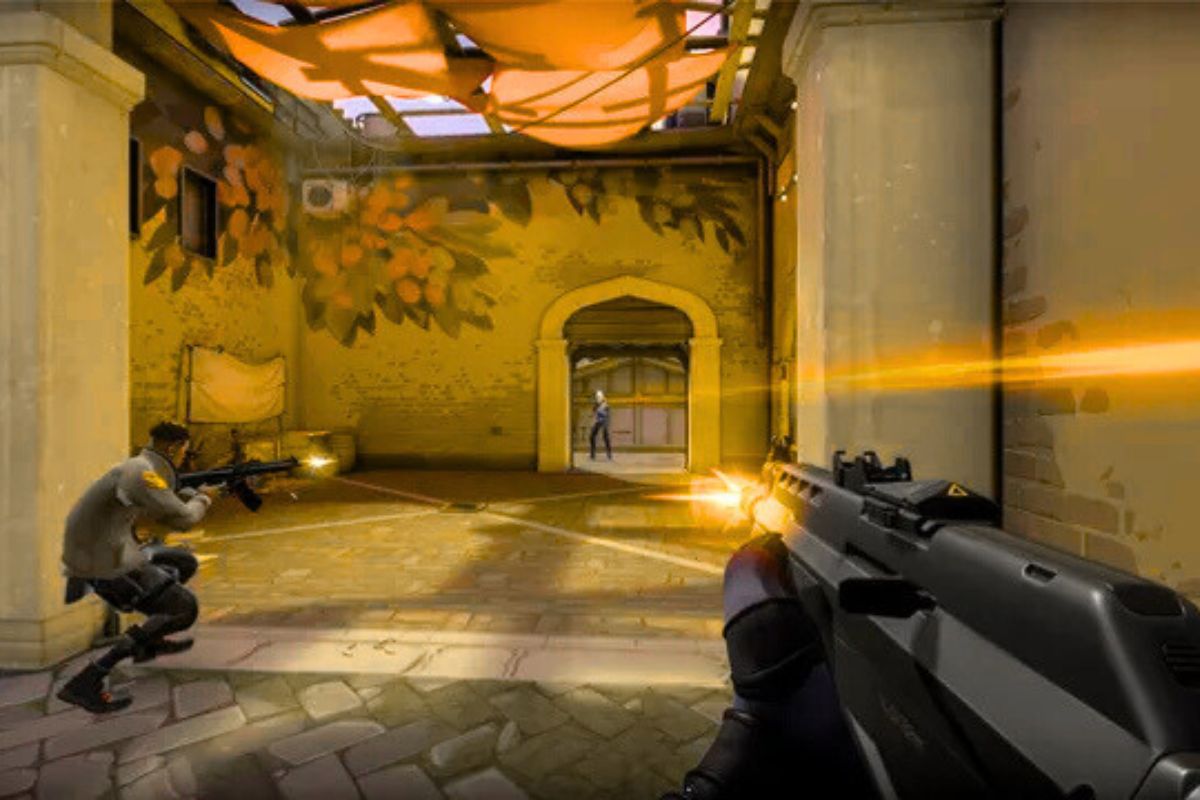
Fix Low FPS Valorant is a competitive shooter that requires stable FPS for accurate aiming and smooth gameplay. Low FPS can cause stuttering, input delay, and reduced responsiveness. Performance depends on graphics settings, system resources, GPU optimization, and driver support. Adjusting in-game options, updating drivers, and optimizing the system can significantly improve FPS on both low-end and high-end PCs.
Common Causes of Fix Low FPS in Valorant
Fix Low FPS Valorant runs on the Unreal Engine 4 with DirectX 11 and relies on both CPU and GPU resources. Low FPS can be caused by high graphics settings, outdated drivers, background applications, or thermal throttling. Insufficient RAM, slow storage, and power-saving modes can further reduce performance. Network lag may also coincide with frame drops in online gameplay.
Fix 1 – Adjust In-Game Graphics Settings
Reducing graphics load improves frame rates without affecting gameplay clarity.
Open Valorant and navigate to Settings > Video. Set Display Mode to Fullscreen for optimal performance. Lower Material Quality, Texture Quality, and Detail Quality to Medium or Low. Disable Vignette, Bloom, and Distortion. Set Anti-Aliasing to MSAA 2x or Off. Apply changes and test FPS in different maps.
Optimized graphics settings reduce GPU workload while maintaining visual clarity.
Fix 2 – Update Graphics Drivers and Windows
Outdated drivers limit performance and cause instability.
Open Device Manager and identify the GPU. Download the latest drivers from NVIDIA or AMD official websites. Install the updates and restart the PC. Open Windows Update and install pending system updates. Restart the system before launching Valorant.
Driver and system updates ensure compatibility with the latest game optimizations.
Fix 3 – Optimize System Resources
Background applications consume CPU, RAM, and GPU, affecting FPS.
Close unnecessary programs using Task Manager. Disable overlays from Discord, Steam, or GeForce Experience. Ensure at least 8–16 GB of free RAM is available. Set Power Options to High Performance under Control Panel. Restart the PC and relaunch Valorant.
Freeing system resources allows Valorant to utilize maximum hardware capacity.
Fix 4 – Adjust Resolution and FPS Cap
High resolution can reduce frame rates.
In Valorant Settings, lower the Screen Resolution to 1280×720 or 1600×900 on mid-range PCs. Set Frame Rate Limit to match the monitor refresh rate or select Unlocked for higher FPS if the GPU can handle it. Test FPS after changes to find the optimal configuration.
Lowering resolution increases frame rates while maintaining gameplay visibility.
Fix 5 – Configure NVIDIA or AMD Control Panel
GPU-level adjustments improve performance consistency.
Open NVIDIA Control Panel or AMD Adrenalin. Set Power Management Mode to Prefer Maximum Performance. Disable Vertical Sync and reduce Texture Filtering Quality to Performance. Apply settings and restart the game.
These adjustments reduce GPU delays and stabilize frame output.
Fix 6 – Manage Temperature and Cooling
High system temperatures can trigger thermal throttling, reducing FPS.
Ensure CPU and GPU temperatures remain below 80°C during gameplay. Clean dust from vents and fans. Use a cooling pad for laptops or improve airflow in desktop cases. Monitor temperatures using software tools.
Maintaining optimal temperatures prevents performance drops due to throttling.
FAQs
What FPS should I target in Valorant?
Competitive gameplay benefits from 144 FPS or higher. Casual play remains smooth at 60–90 FPS.
Can lowering graphics affect gameplay visibility?
Lowering graphics improves FPS but does not affect essential visual cues like enemy models or crosshairs.
Will driver updates alone fix low FPS?
Driver updates improve stability and efficiency, but combining them with system and in-game optimization provides the best results.
Conclusion
Fix low FPS in Valorant requires adjusting graphics settings, updating drivers, optimizing system resources, lowering resolution, configuring GPU settings, and maintaining proper cooling. These steps enhance frame stability, reduce stuttering, and ensure smooth and responsive gameplay on both low-end and high-end PCs. Implementing these adjustments provides a competitive and consistent experience in Valorant.