
Does the Steam Deck shut down randomly every now and then whenever you launch and play your favorite game? Don’t worry, you’re not alone.
The Steam Deck crashing issue, along with the Steam Deck battery draining fast, is one of the most common problems faced by players, many of whom report that their device suddenly freezes, restarts, or shuts down while playing games. In some cases, the Steam Deck crashes right after launching a game, while in others, the Steam Deck freezes in-game during longer sessions.
Yes, I understand. Whatever the case, this can be very, very frustrating. The good news is that most of these problems can easily be fixed!
Therefore, in this guide, I’ll tell you how to fix the Steam Deck crashing issue using simple and proven solutions.
Why Does Steam Deck Crash So Much?

Among many things, here’s what causes the Steam Deck to crash.
Unfinished Software Update
After a system update, some users experience the “Steam Deck crashing after update” problem due to bugs or unfinished patches during the update process.
Overheating
When the handheld console gets too hot, it shuts down to protect itself, leading to the “Steam Deck shuts down randomly” problem.
Game Optimization
Some titles are not fully optimized, which can cause the “Steam Deck game crashing completely” issue.
Hardware Defects
In rare cases, hardware issues or damaged SSDs can also cause Steam Deck crashes a lot, especially when playing heavy, demanding games.
Other Uncommon Issues
Sometimes, low storage space, corrupted game files, or unstable plugins also cause Steam Deck crashing issues.
What To Do When Steam Deck Crashes?

“How do I stop my Steam Deck from crashing?” – This is the thought that comes to mind when you first experience the notorious Steam Deck crashing issue.
First of all, do not panic!
Start by restarting the device and letting it cool down for a few minutes. This clears up temporary software hiccups that cause freezes or shutdowns. Next, check for updates in your settings and make sure your Steam Deck is up to date. This is because keeping everything up to date fixes bugs that often cause games to crash completely or the system to reboot.
If your Steam Deck keeps on crashing, then continue reading further.
How To Stop Games from Crashing on Steam Deck?
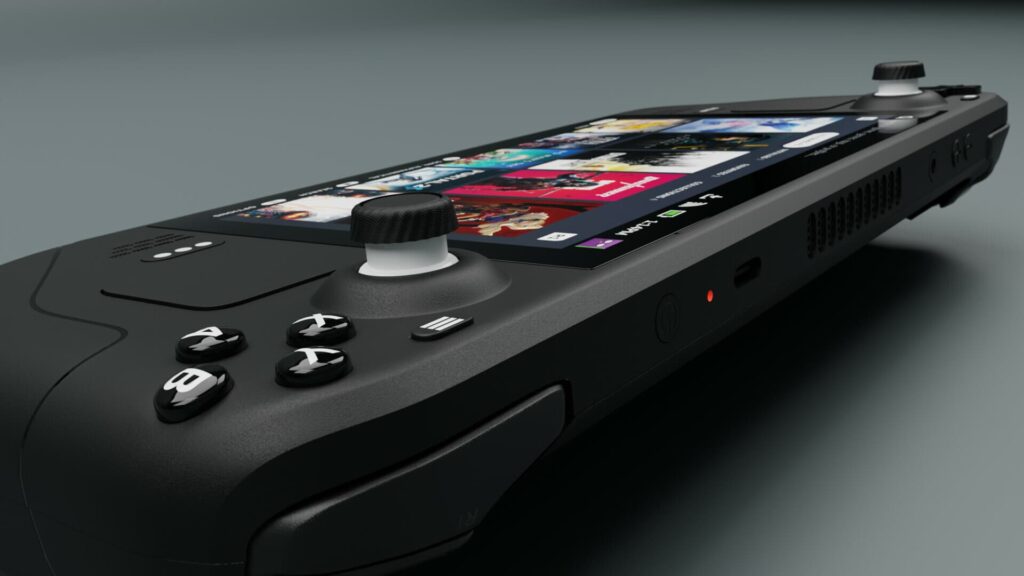
If you’re dealing with the Steam Deck games crashing error, Steam Deck freezes in-game issue, or even the Steam Deck freezing in Game Mode problem, the best approach is to fix things step by step.
Let’s start with the easiest checks first, as detailed below.
Solution 1: Force restart your Steam Deck
Sometimes the system just gets stuck. A simple force restart can instantly stop Steam Deck crashing and restarting during or after a game launch:
- Press and hold the Power button for about 10–12 seconds until the device fully turns off.
- Wait 5 seconds.
- Press Power once to turn it back on.
- Launch the same game again and test for 10–15 minutes.
If the crash happens again, move to Solution 2.
Solution 2: Verify the Game Files
Corrupted files are a very common reason for the Steam Deck keeps on crashing problem, especially after updates or interrupted downloads:
- Open Steam Library.
- Select the game that has the problem.
- Open the game’s settings by tapping the gear icon.
- Go to Properties → Installed Files (or Local Files).
- Select “Verify integrity of game files.
After verification ends, launch the game again. If you keep seeing Steam Deck crashing and restarting, continue below.
Solution 3: Update Game Files
If a game has recently started acting up, an update might already be waiting for you. Game patches often fix Steam Deck crashing after update situations.
Yes, you heard that right. Game updates can also break things and then get patched fast:
- Open Steam Library.
- Select the game.
- Check if an update is pending.
- If so, then let it fully update first
- Reboot and test again.
If the game still crashes, move on to the next solution.
Solution 4: Reinstall the Game
If one game keeps crashing no matter what, a clean reinstall can remove broken files and bad settings:
- Press the Steam button.
- Go to Settings → Storage.
- Select the game and uninstall it.
- Restart the Steam Deck.
- Install the game again and test.
This method often fixes the issue where the Steam Deck keeps on crashing only in one title.
Solution 5: Check If the Game is “Verified” on Steam Deck
Some games are not fully optimized for the Steam Deck, which then lead to Steam Deck crashing issues, even if your device is fine.
- Open the game’s page in your Steam Library (or Steam Store page).
- Look for the Steam Deck rating.
- It should be either Verified, Playable, Unsupported, or Unknown.
- If it’s not Verified, search for recommended settings or known issues.
- If it’s Unsupported or Unknown, try a different Proton version
Solution 6: Change the Proton Version for The Game
Speaking of which, Proton is the compatibility tool that helps run many Windows games on SteamOS.
Since a lot of Steam Deck crashing/freezing in Windows-based games is really a compatibility issue, switching the Proton version often solves instant crashes, launch crashes, or weird freezes.
- In Steam Library, select the problematic game.
- Tap on the gear icon and navigate to Properties.
- Go to the Compatibility tab.
- Here, enable “Force the use of a specific Steam Play compatibility tool.”
- Pick a different Proton version than the one currently selected.
- Try Proton Experimental first, and then a stable Proton version.
Now test the game again. If you’re still seeing Steam Deck freezing in Game Mode, go to performance tweaks.
Solution 7: Lower In-Game Graphics
Why? Because some crashes are not “bugs”. The game is simply too heavy at current settings, and thus turning them down helps fix Steam Deck crashing issues:
- Open the game’s Settings and head to Graphics.
- Lower Texture quality first
- Then lower Shadows
- And then disable Anti-aliasing
- If possible, enable a frame limit of either 30 or 40.
- Restart the game.
This helps a lot when the Steam Deck freezes during a game in demanding scenes.
Solution 8: Fix Connection Issues (DNS)
You don’t necessarily need to lower in-game visuals if your problem is related to online connectivity. Although this sounds “advanced,” changing DNS is quite simple and can help when a game crashes during login, downloads, syncing, or online play.
- Hold the Power button and choose Switch to Desktop.
- Click the Wi-Fi icon (bottom-right).
- Click on Configure Network Connections and head to the IPv4 section.
- Here, set DNS to a reliable public DNS (Google DNS 8.8.8.8 and 8.8.4.4).
- Reconnect to Wi-Fi and try launching the game again.
Solution 9: Move the Game to Internal Storage
Trust me, SD card issues are real. If the game is installed on a microSD and you notice Steam Deck crashes a lot, the SD card can be the problem. Moving the game to internal storage helps improve game stability.
But first, try re-seating your SD card:
- Power off the Steam Deck.
- Remove the microSD card.
- Reinsert it firmly.
- Boot up and test the game again.
If it still crashes, then remove the game from your SD card entirely.
- Press the Steam button.
- Open Settings and go to Storage.
- Select the game.
- Choose Move and pick Internal Drive.
- Launch the game again and check if Steam Deck Crashing and Freezing stops.
Solution 10
If all else fails and you find yourself asking, “Why Steam Deck Keeps Crashing,” worry not. We still have one more solution left to go with!
Valve pushes fixes for bugs, drivers, and system stability over time. If you haven’t updated your SteamOS in a while, then it’s about time.
- Press the Steam button.
- Go to Settings and then System.
- Check Software Updates.
- Install updates and reboot.
This should solve all your Steam Deck crashing issues.
FAQs about Steam Deck Crashing and Freezing

Which Games Are Crashing on Steam Deck?
Games that are officially tagged as Unsupported or Unknown for the Steam Deck compatibility often crash when launched on the Steam Deck.
How Do I Stop Steam Deck Games from Crashing?
Update SteamOS, verify game files, change Proton versions, and lower graphics settings to fix most Steam Deck crashes.
Do Steam Deck Overheat?
Yes, heavy games can cause heat buildup, leading to Steam Deck freezes during gameplay or sudden shutdowns if cooling is blocked.
Are Steam Decks Bad?
No, Steam Decks are reliable, but if not maintained properly, software bugs or compatibility issues can cause Steam Deck crashing and freezing issues over time.
Can Steam Deck Crossplay?
Yes, many multiplayer games support crossplay on Steam Deck, as long as the game itself allows it.
Final Thoughts
The Steam Deck crashing issue can indeed be very frustrating, but most problems are easy to fix with the right steps, just like how we saw above. From software updates and restarting the console to Proton changes and storage fixes, you now know how to fix Steam Deck crashing issues.
I’m curious to know which method above worked for you. Share your thoughts with us in the comments down below!